Presentation Intelligence: Three Ways to Create Presentations with AI
Presentation Intelligence (pi.inc) is an AI presentation maker that works the way you actually think — not the way presentation software forces you to work. Most AI PPT tools expect you to show up with a finished outline, a curated slide deck, or at least the patience to wrestle with templates. pi.inc doesn't. Pick the mode that matches where you're starting from, and the AI handles the rest.
Right now, the platform offers three paths into an AI-generated presentation. Each maps to a different starting point.
Mode 1: One-Click — You Have the Text, You Just Need the Slides
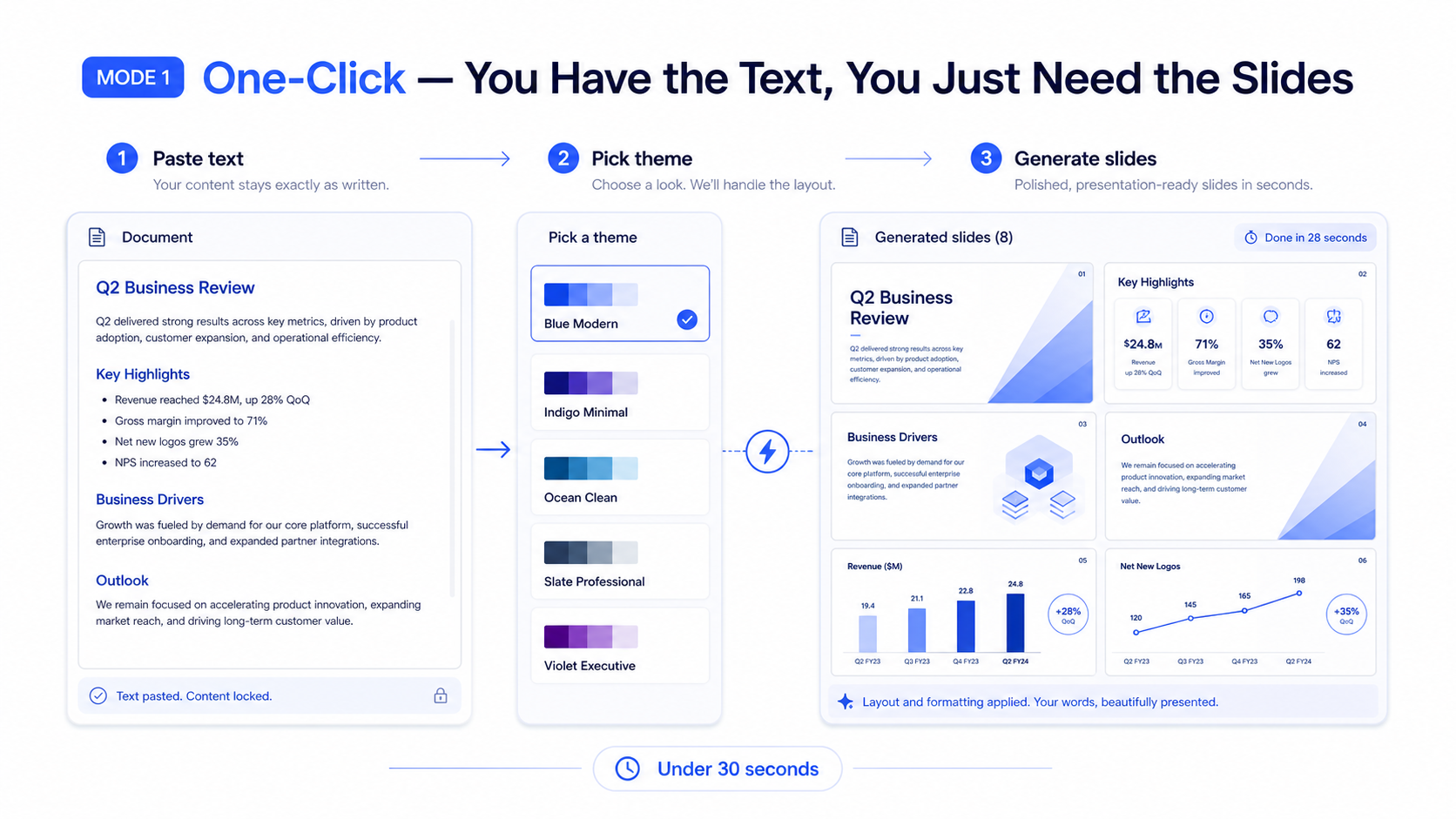
This is the fastest route through the AI presentation generator. Got a finished document? A polished write-up? A blog post you want to turn into a deck? Paste it in, pick a visual theme, and the AI slide generator handles layout, pagination, and formatting — all in one click.
The text stays exactly as you wrote it. The AI only touches the layout.
One-click mode doesn't rewrite your content. What it does: parse your document's structure, figure out where the natural page breaks belong, distinguish titles from body text from data from transitions, and match each segment to the right layout. Title pages get bold hero treatment. Data sections get chart-ready frames. Comparisons get side-by-side columns. Zero edits to your words.
When to use it:
- You've already written everything and just need it presentation-ready
- Weekly reports, monthly reviews, quarterly business reviews — any recurring format
- Turning long-form documents into speaker-ready slide decks fast
Flow: Paste text → pick a visual theme → generate. Three steps, usually under 30 seconds.
The visual theme is a single click. pi.inc ships with a built-in style library covering business, tech, creative, education, and more. Apply one theme, and every slide follows it — no drifting fonts across pages, no inconsistent color palettes, none of the alignment headaches that come with hand-building a deck.
Mode 2: Agent — You Have a Rough Idea, the AI Helps You Build the Outline
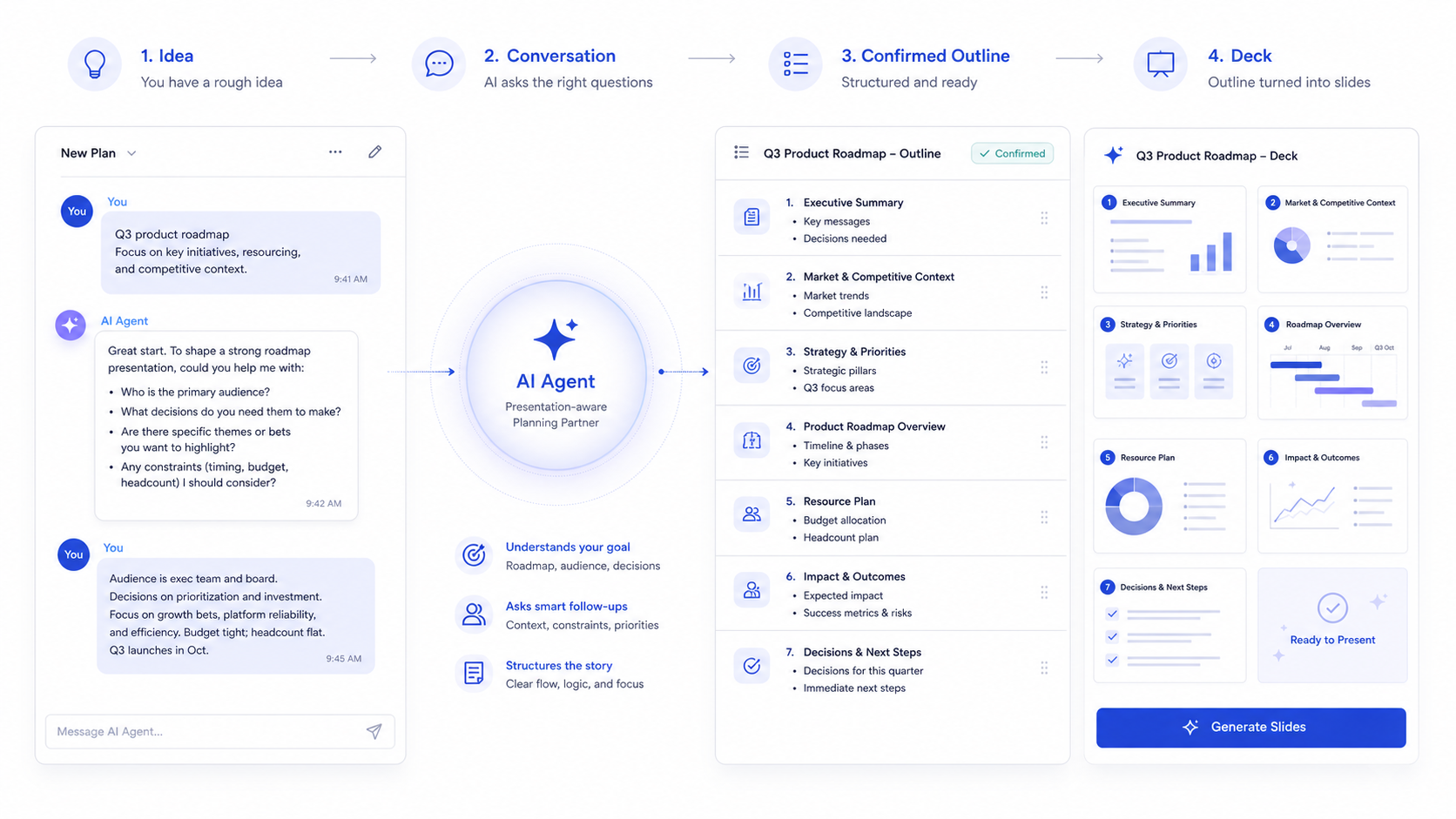
The most common starting point for an AI-powered presentation isn't "I have a finished script but hate formatting." It's "I know what I want to talk about, but I don't know how to turn that into a slide deck." Agent mode is built for that.
You chat with a presentation-aware AI agent. The outline takes shape as you talk.
You don't open with a structure. You open with a direction: "I need to present our Q3 product roadmap — the key thing is resource allocation across three new features." The agent asks follow-ups: Who's the audience? What's the current status of each feature? Any competitive context to reference? A few exchanges later, you have a structured outline ready to confirm.
Confirm the outline, pick a visual theme, click generate. Every slide lands at once.
When to use it:
- You have a direction but no written content yet
- You're working with scattered reference materials — data snapshots, competitor notes, rough bullet points
- New proposals, project plans, pitch decks, strategy presentations — anything starting from zero
Flow: Chat with the agent → agent produces an outline → confirm → pick a visual theme → generate. The whole thing is conversational. You're never staring at a blank slide wondering what goes next.
Editing after generation works the same way. Tell the agent "swap the chart on slide three for a bar chart" or "add a competitive comparison slide after slide five," and it edits the deck in place — no exporting, no re-importing, no jumping back to a separate editor.
Mode 3: Creative Image Slides — Every Page Is an Original Visual, Generated by Top-Tier AI Models
Some presentations live or die on visual impact. Brand proposals. Product launches. Creative pitch decks. Design portfolios. For these, "clean layout" isn't enough — you need images that carry the story, and you need them to feel crafted, not stock.
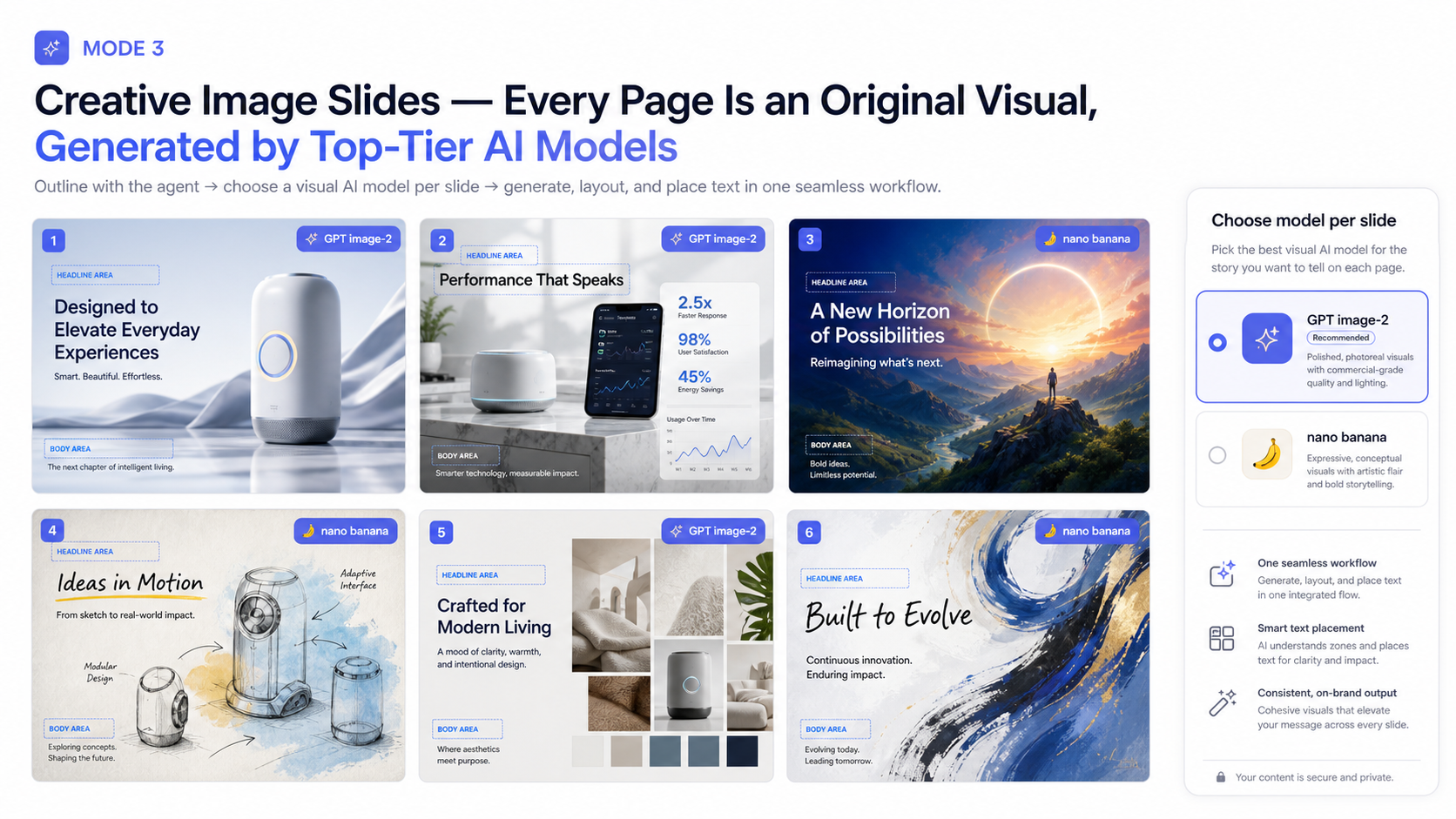
pi.inc's creative image mode gives you a choice between two of the most powerful visual AI models available: GPT image-2 and nano banana.
The workflow starts the same way as Agent mode — chat through the direction, confirm the outline. The difference is what happens next. Instead of picking a layout theme, you assign a visual model to each slide.
GPT image-2 and nano banana each own a distinct visual language. GPT image-2 dominates photorealism, lighting texture, and commercial polish — it's the go-to for cover hero shots, product renders, and data-rich pages where "credible and refined" is the brief. Nano banana owns artistic expression, color intensity, and creative range — the pick for concept pages, mood boards, and brand storytelling where "unforgettable on first glance" is the bar.
You can mix models slide by slide, and switching takes a single click. A classic combo: GPT image-2 for a magazine-grade brand hero on the cover and product-scene pages that need to stay grounded and real, then switch to nano banana for the "Vision & Values" slide to generate a conceptually rich, artistically charged image. The deck lands with commercial credibility and creative punch — not one at the expense of the other.
And what the AI generates isn't a background image with text slapped on top. When the visual model creates a slide, it's already accounted for where the text will live — the headline zone, the data zone, the body zone all have natural compositional homes in the image. Text lands into a complete layout, not two layers stitched together in post.
When to use it:
- Brand identity decks, visual proposals, design portfolios
- Product launches and keynote presentations
- Creative pitches where visual storytelling carries the argument
- Any situation where "good enough" layout won't cut it
Flow: Chat with the agent → agent produces an outline → confirm → pick a visual model per slide (GPT image-2 / nano banana) → generate. Model selection takes one click per slide, and everything stays inside a single workflow — no bouncing between a content tool, a design tool, and an image generator.
In a traditional workflow, a high-visual-impact slide deck means juggling at least three tools: one for writing, one for design, one for images. pi.inc's creative image mode collapses all three into one flow. You define the direction with the agent, the agent structures the deck, you choose the visual engine, and image generation, layout, and text placement all happen in one pass.
Which Mode to Pick
It comes down to one question: what do you have right now?
| What You're Starting With | Pick This Mode |
|---|---|
| Finished text, just need slides | One-Click |
| A direction or scattered materials, need help structuring | Agent |
| A need for high-impact visuals, every slide a standalone piece | Creative Image |
All three modes share the same underlying architecture: once the outline is locked, visual style selection is a single click. That's the core difference between pi.inc and most AI presentation tools on the market — it treats AI not as a template-filling plugin, but as the engine driving the entire creation process. You decide the starting point, confirm the direction, and pick the style. The AI executes everything else.
Create your next presentation at https://pi.inc — the AI presentation generator built for how you actually work.
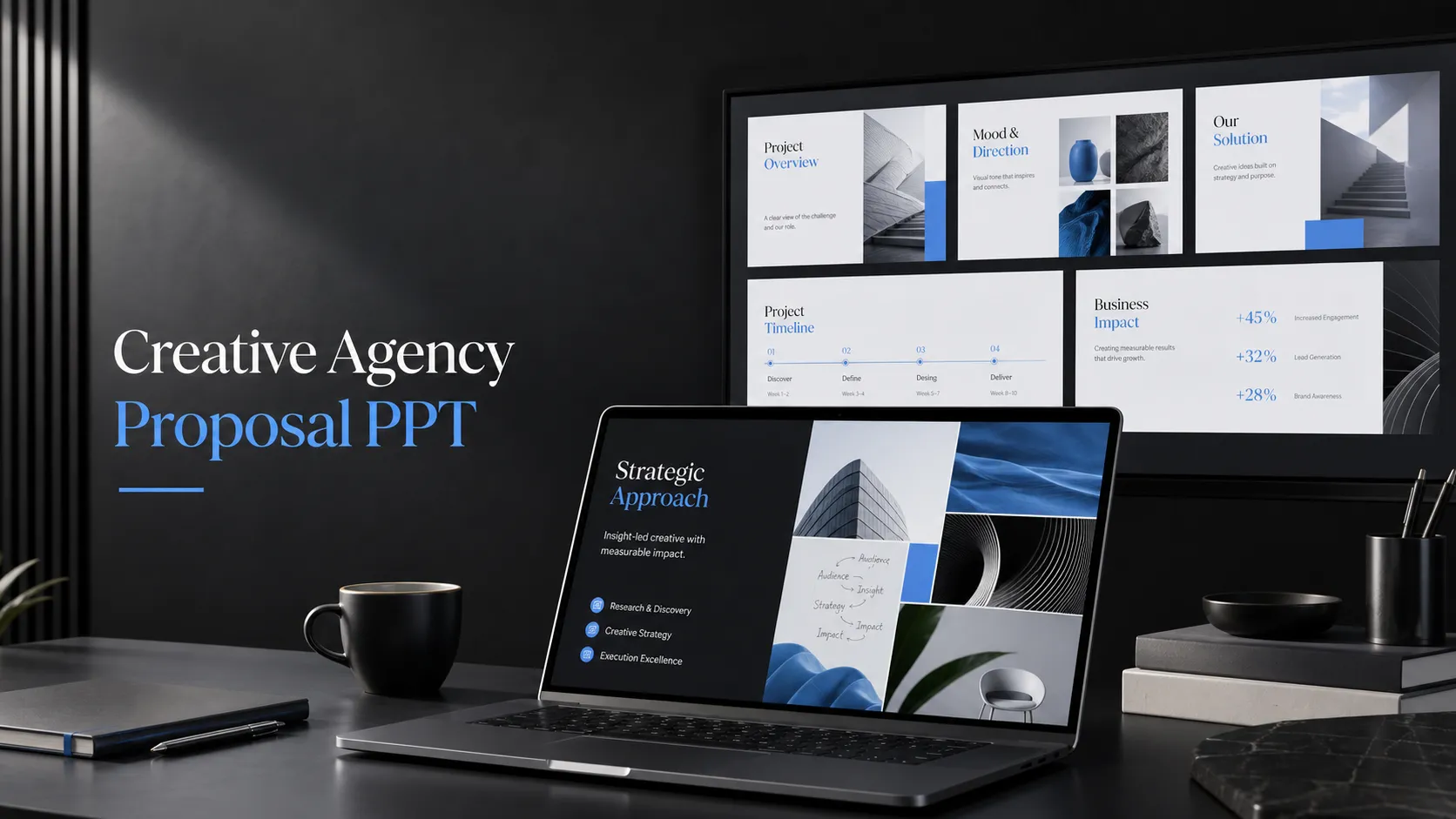 Creative Agency Client Proposal Template: Winning B2B Deals with Aesthetics
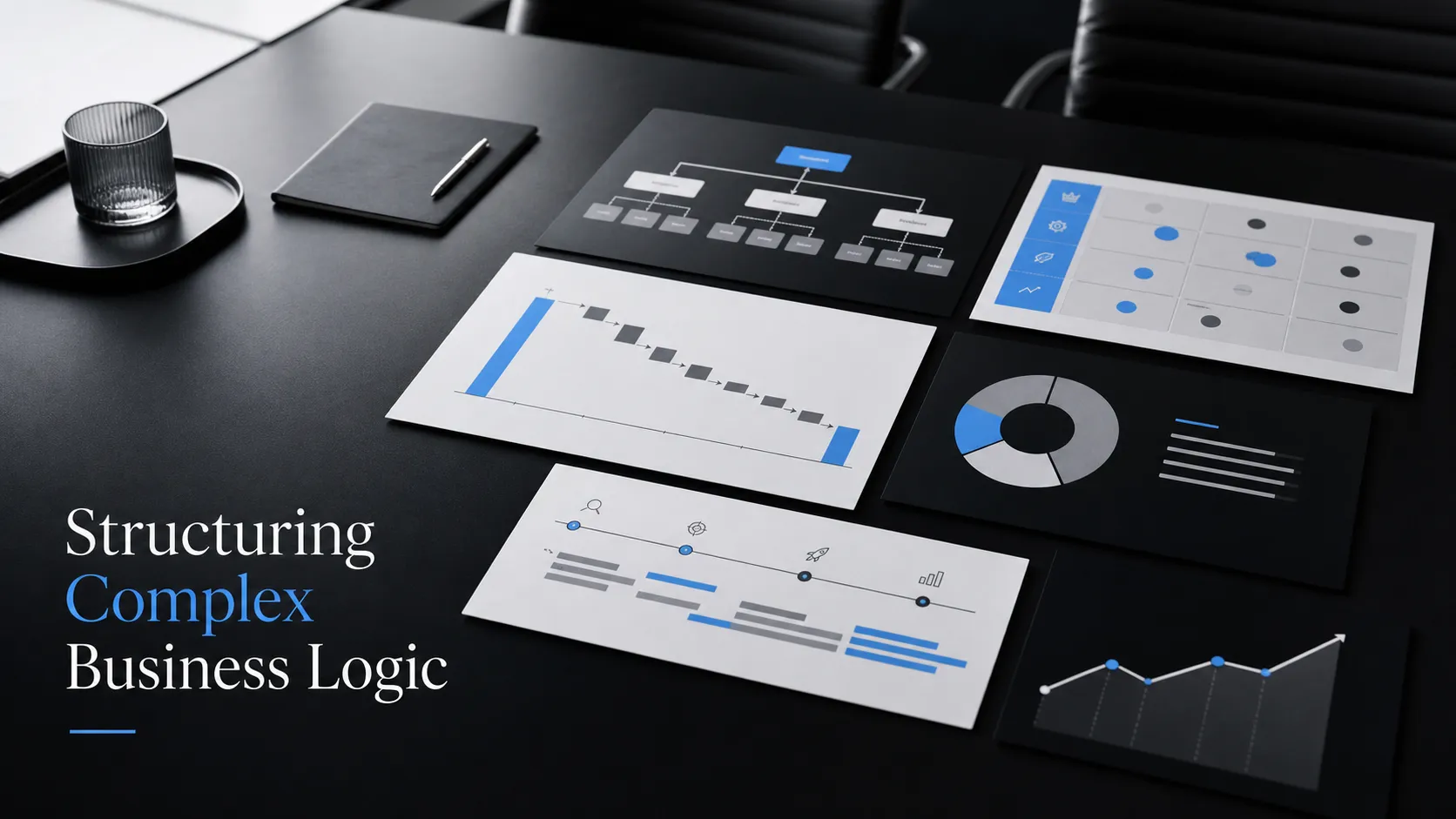 Management Consulting Report Template: Structuring Complex Business Logic